
Video guides
Short, step-by-step demos of the real app — they play automatically and loop. Use the screen/phone toggle on each to match how you use TrainerBook.
For trainers
Get set up and ready for clients.
Share your booking link
The one link your clients book from — no account needed.
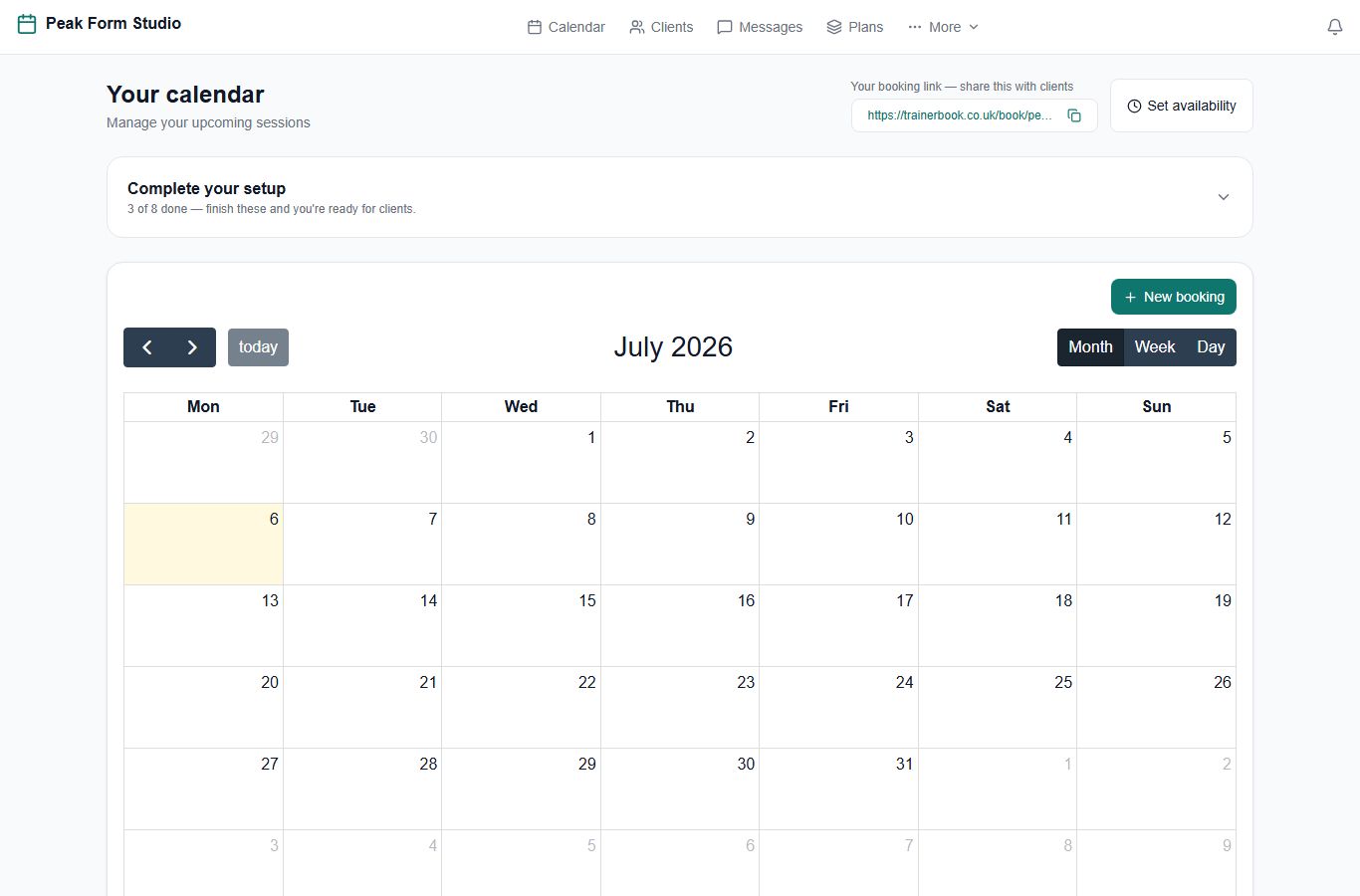
Your booking link sits at the top of your dashboard. Copy it and share it anywhere — clients book straight from it, no account required.
Set your availability
Choose the days, times and session lengths clients can book.
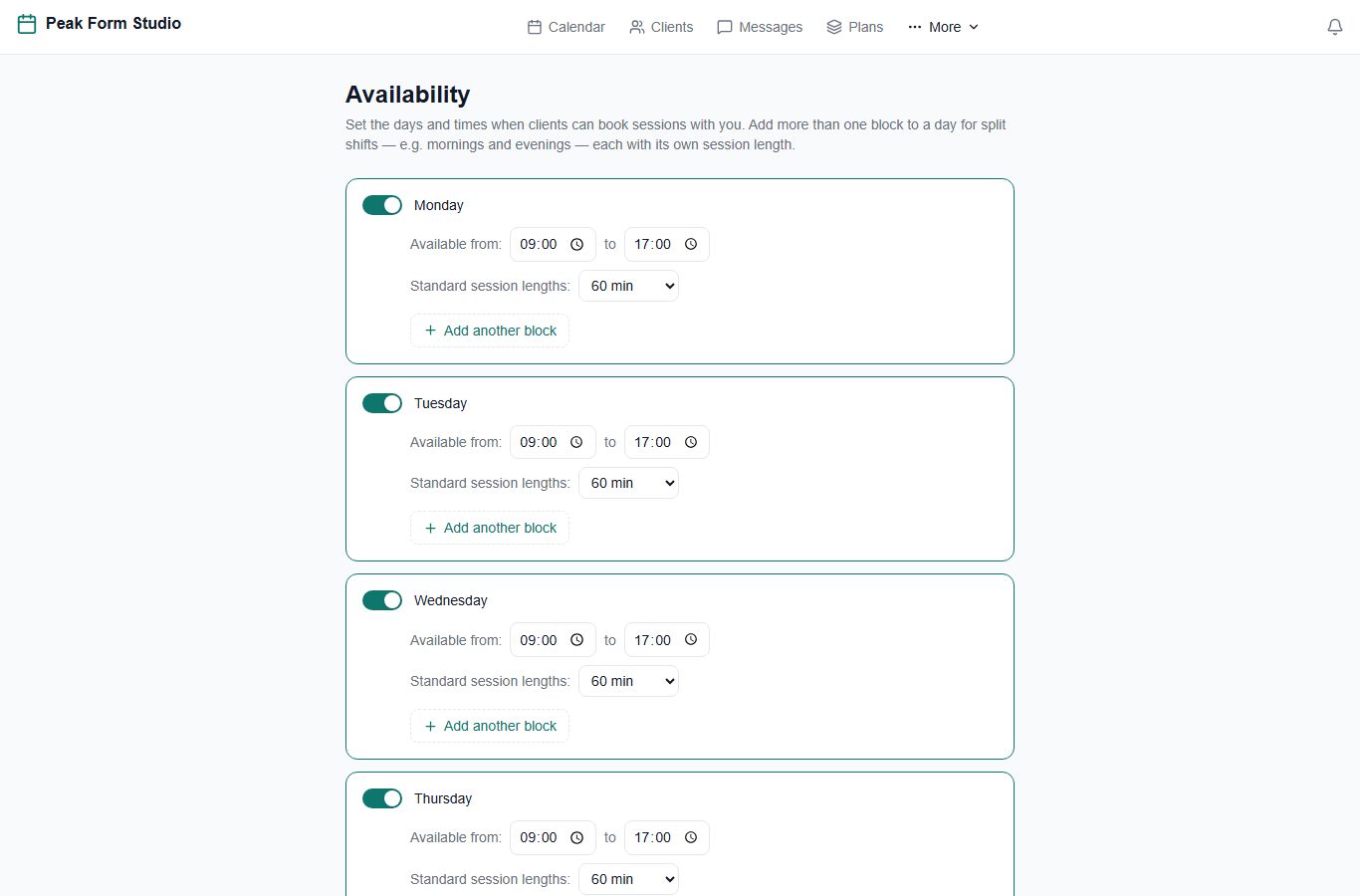
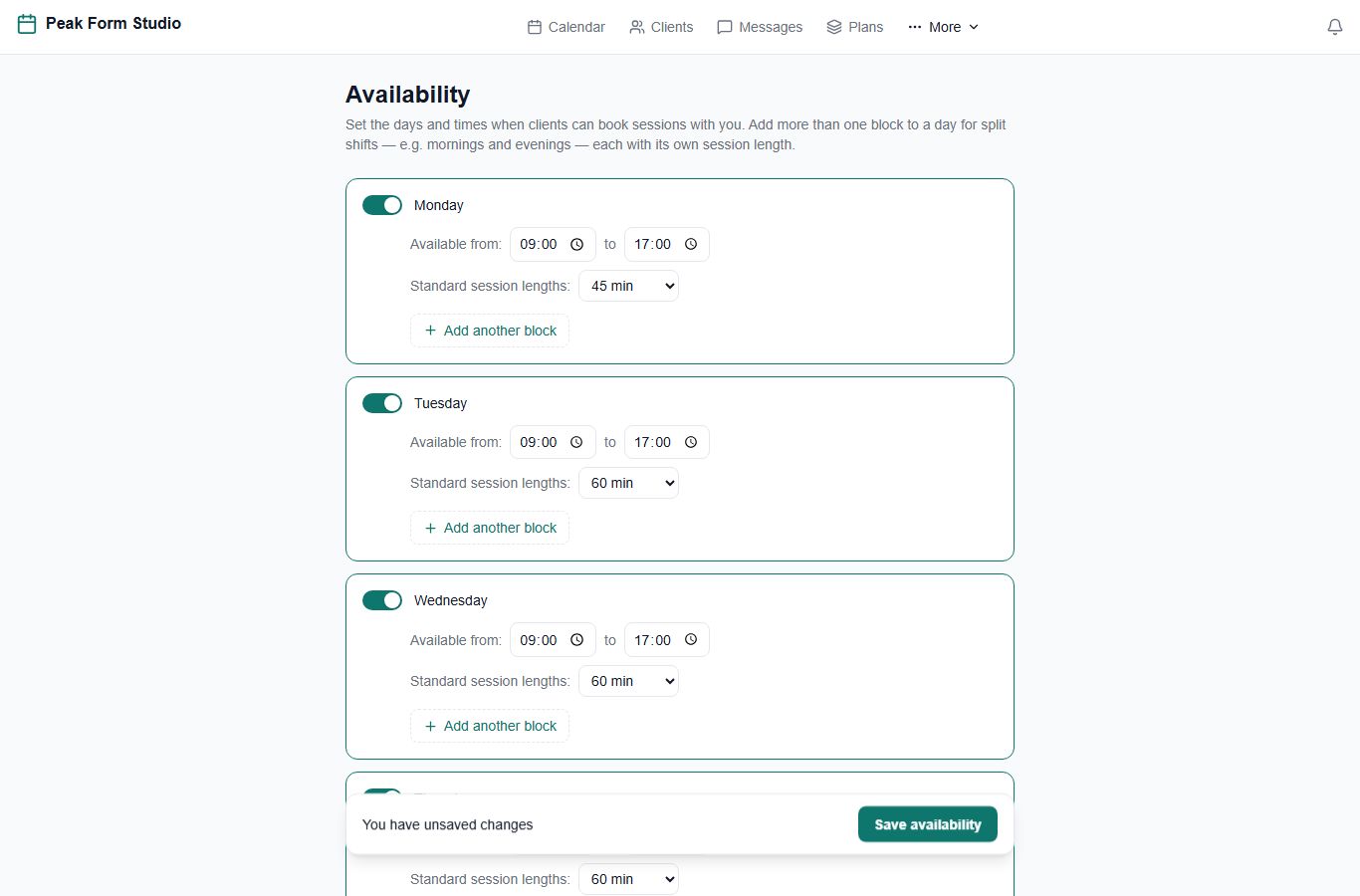
Open Availability and switch on the days you work. Each day can have its own hours and standard session length — add a second block for split shifts.
Create a plan
ProSell memberships or session packs and get paid automatically.
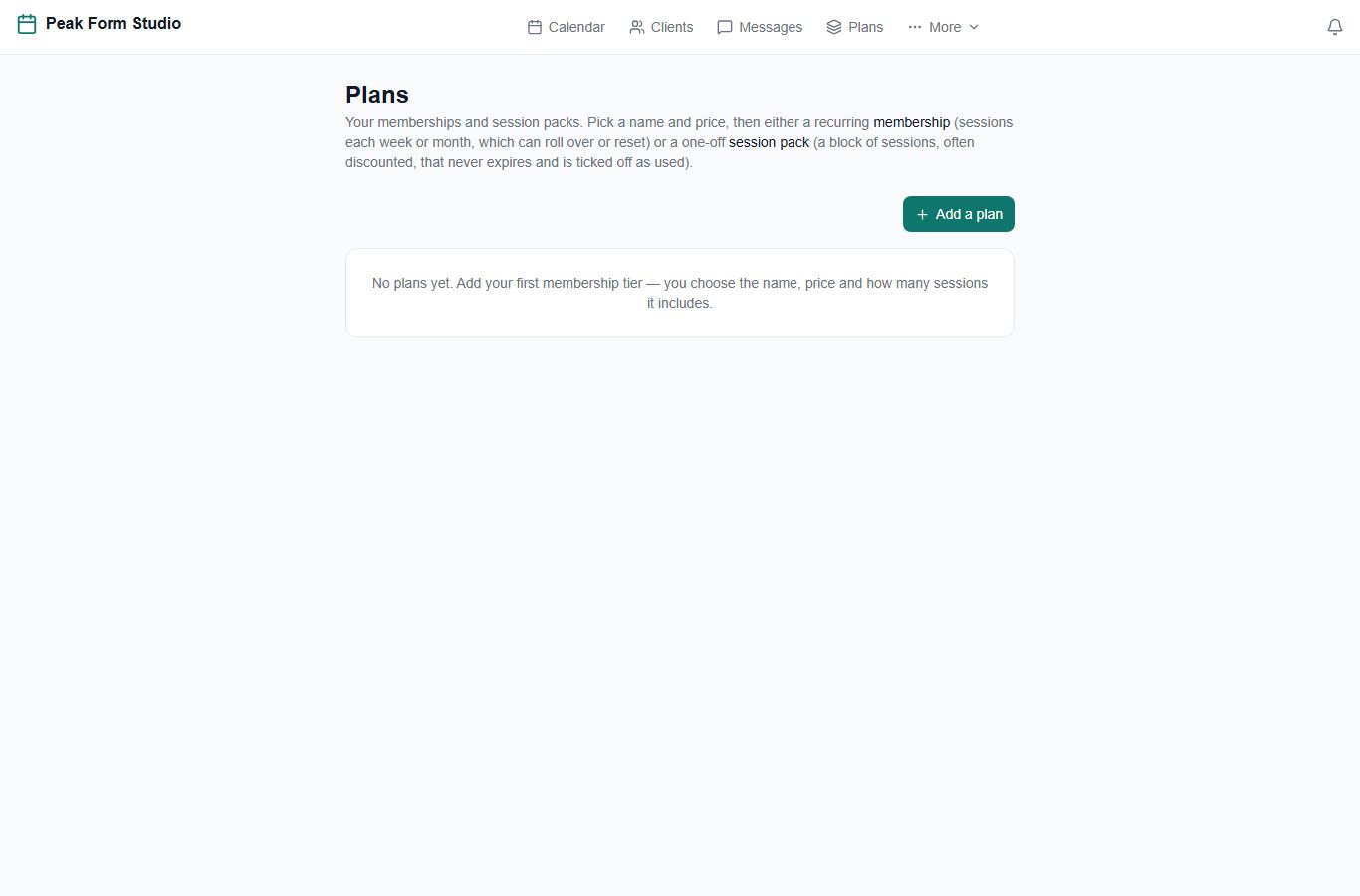
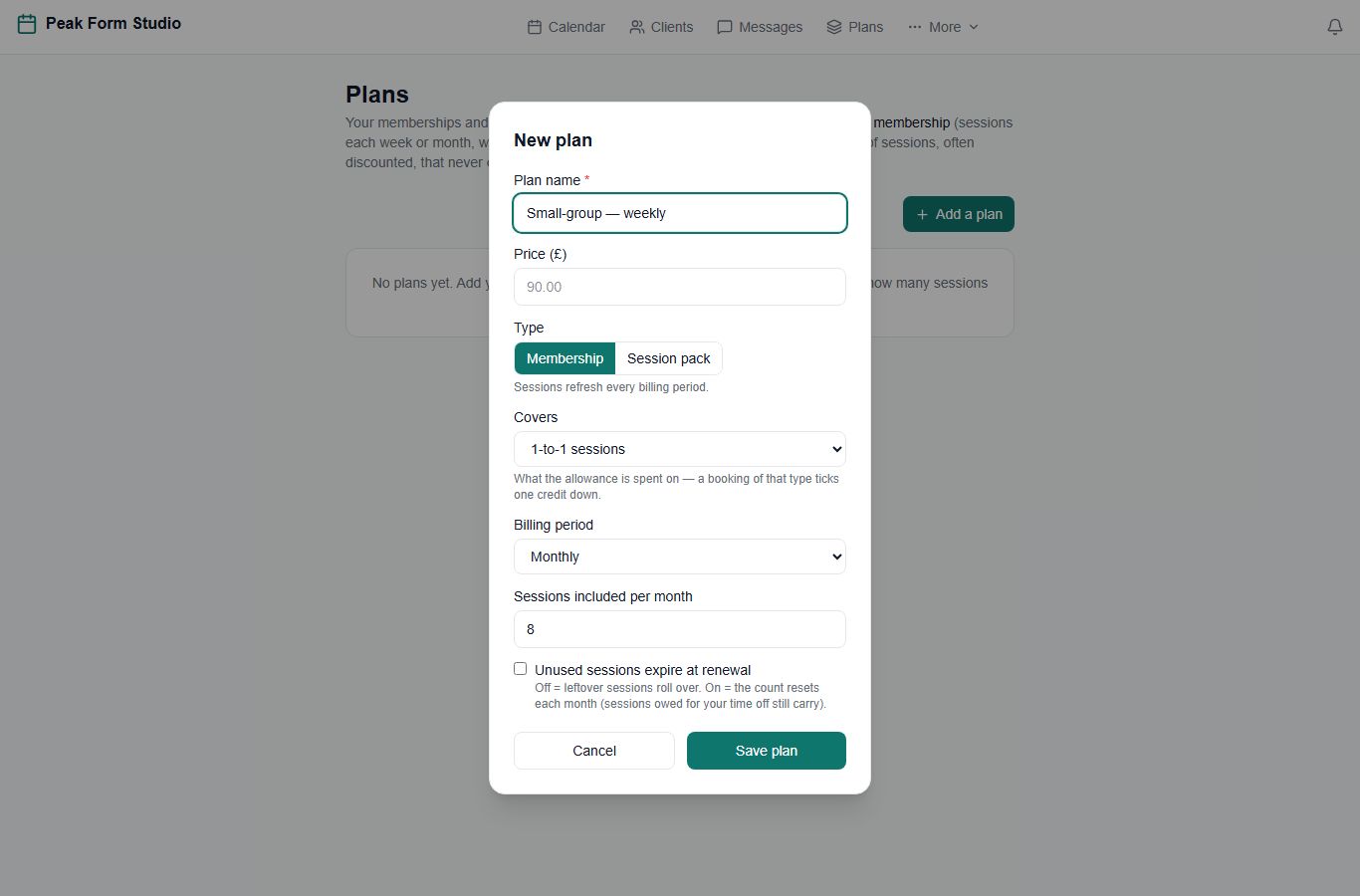
Open Pricing and choose “Add a plan” to create your first membership or session pack.
Make it your brand
ProYour colours, fonts and logo across your booking page and clients’ portal.
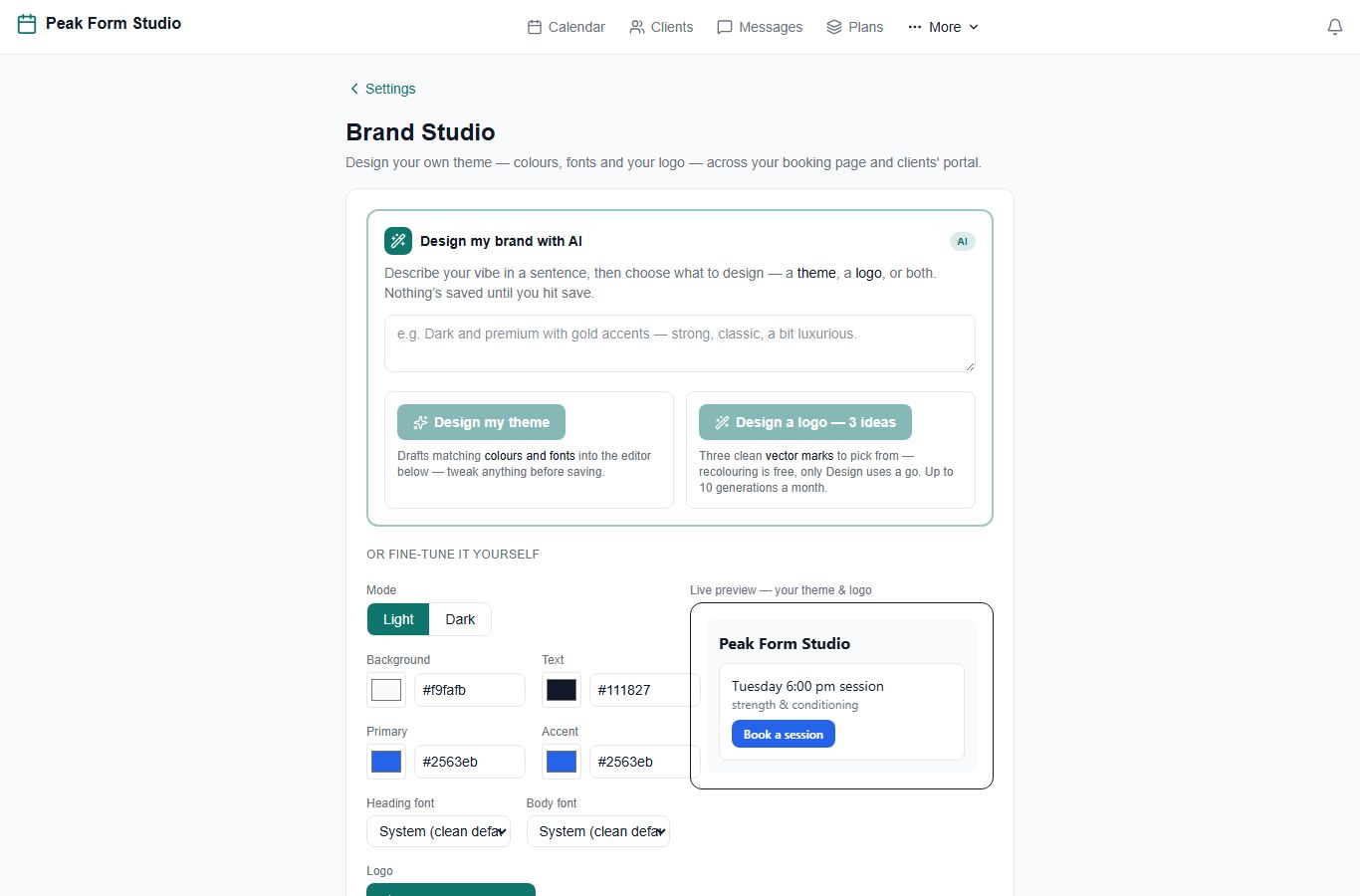
In Brand Studio, set your colours, fonts and logo — or describe your vibe and let AI draft a theme and logo ideas. Everything stays contrast-checked and readable.
For clients
Booking and managing your sessions.
Book a session
How your clients book — from link to confirmation.
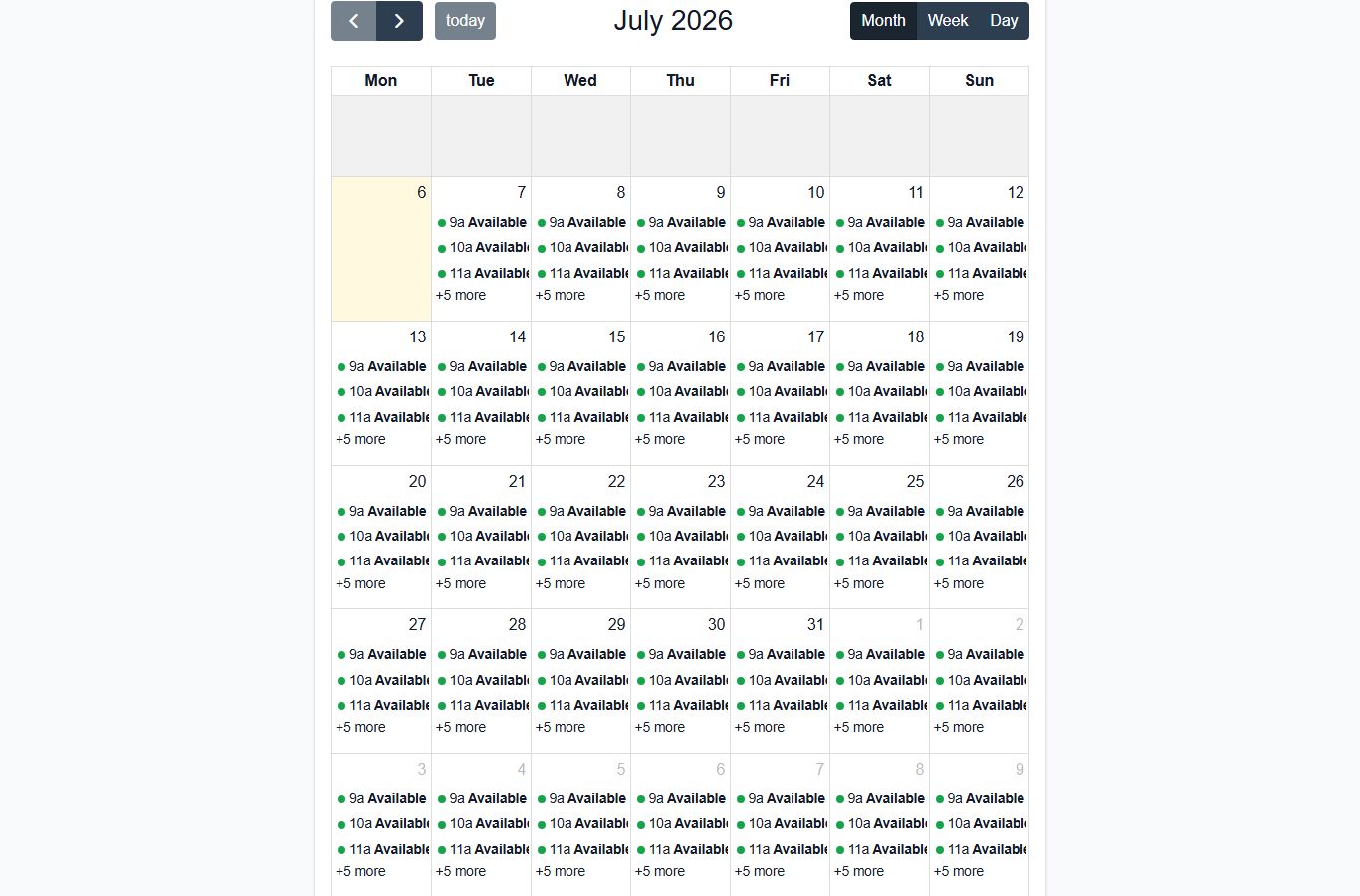
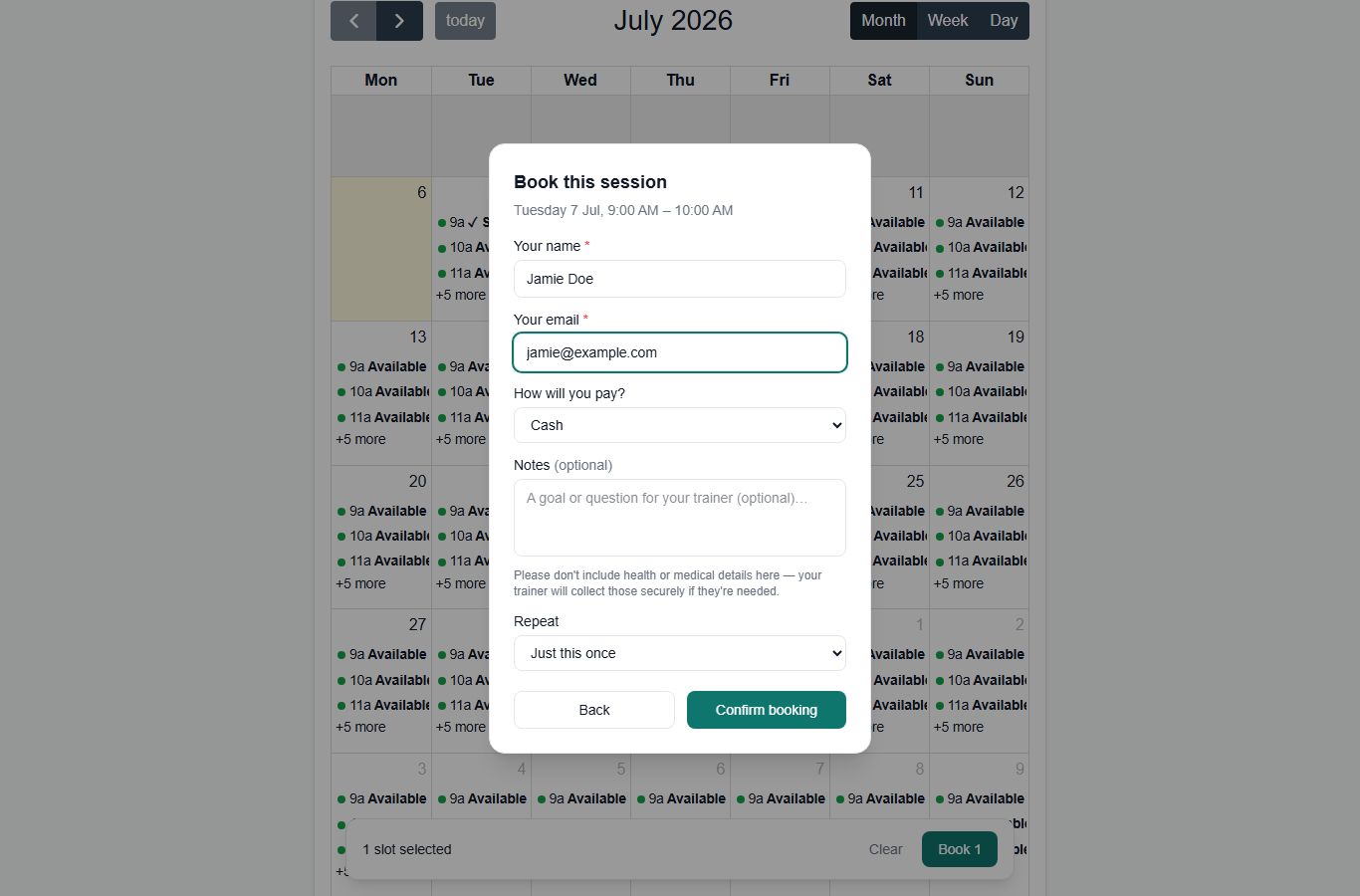
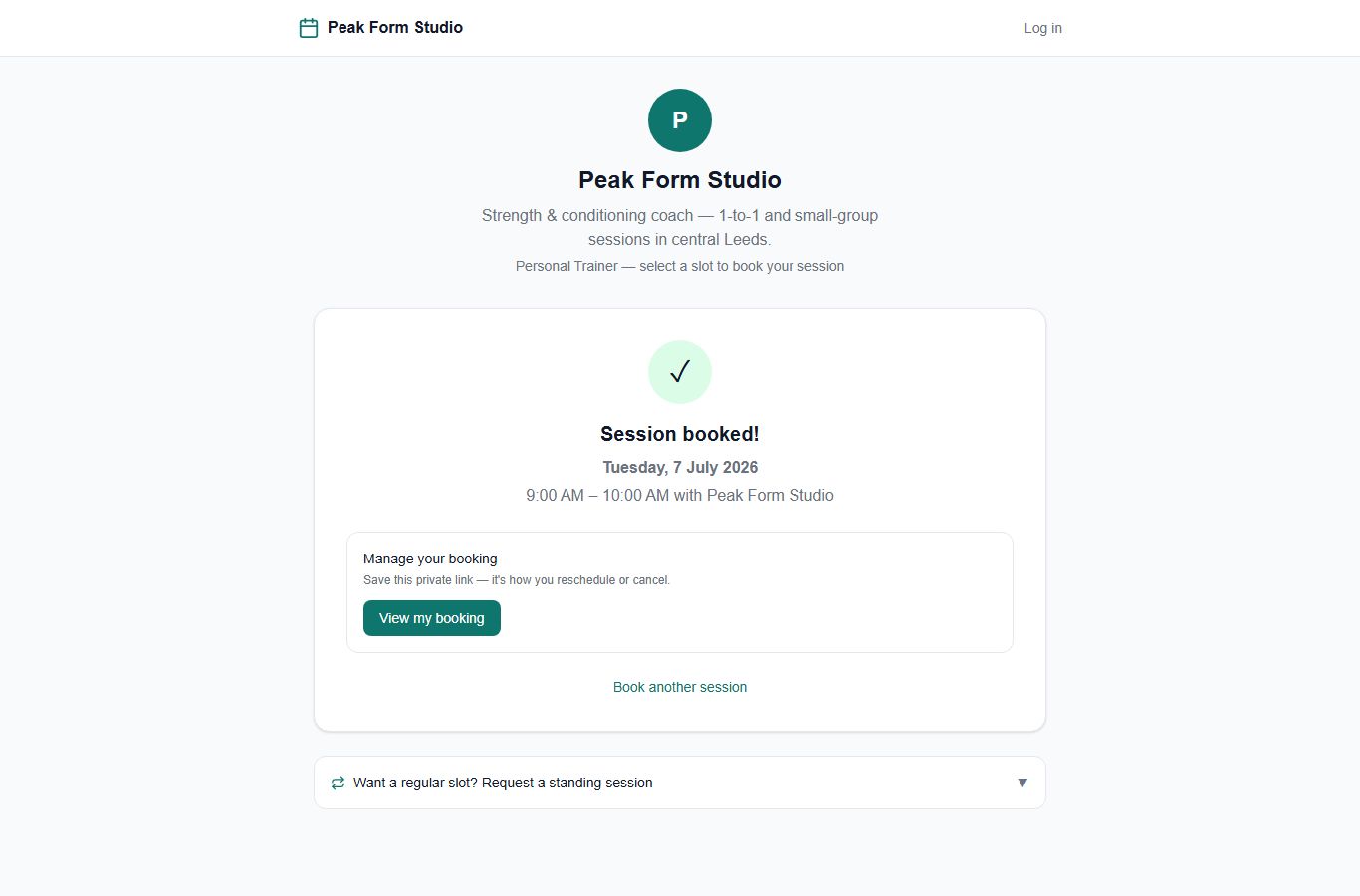
Open your trainer’s booking link and tap a green “Available” slot (or drag across a few).
Your client space
Every session, membership and message with your trainer in one place.
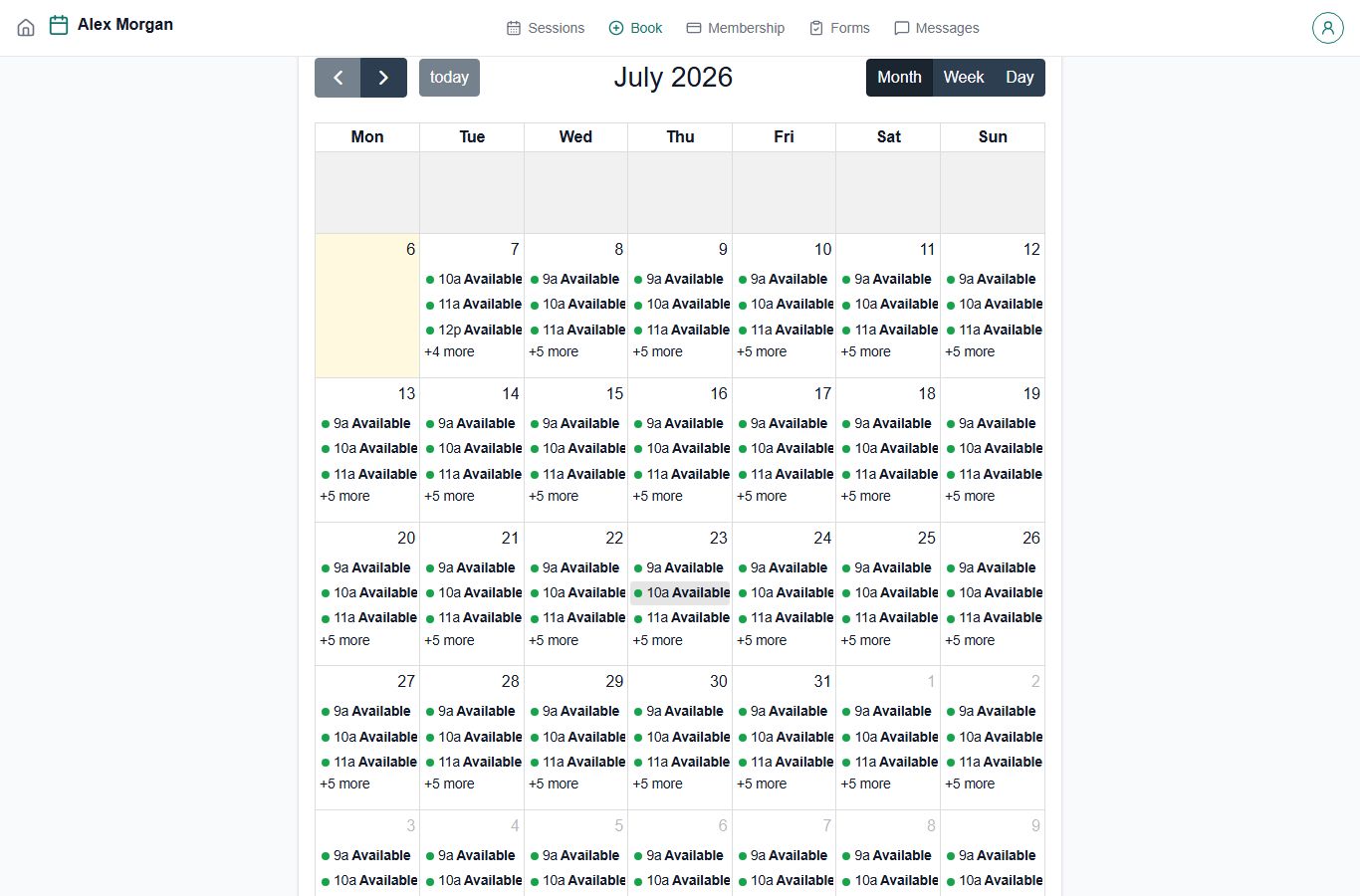
Sign in to your space to see all your sessions, your membership and credit balance, and messages with your trainer.