Calendar & hours
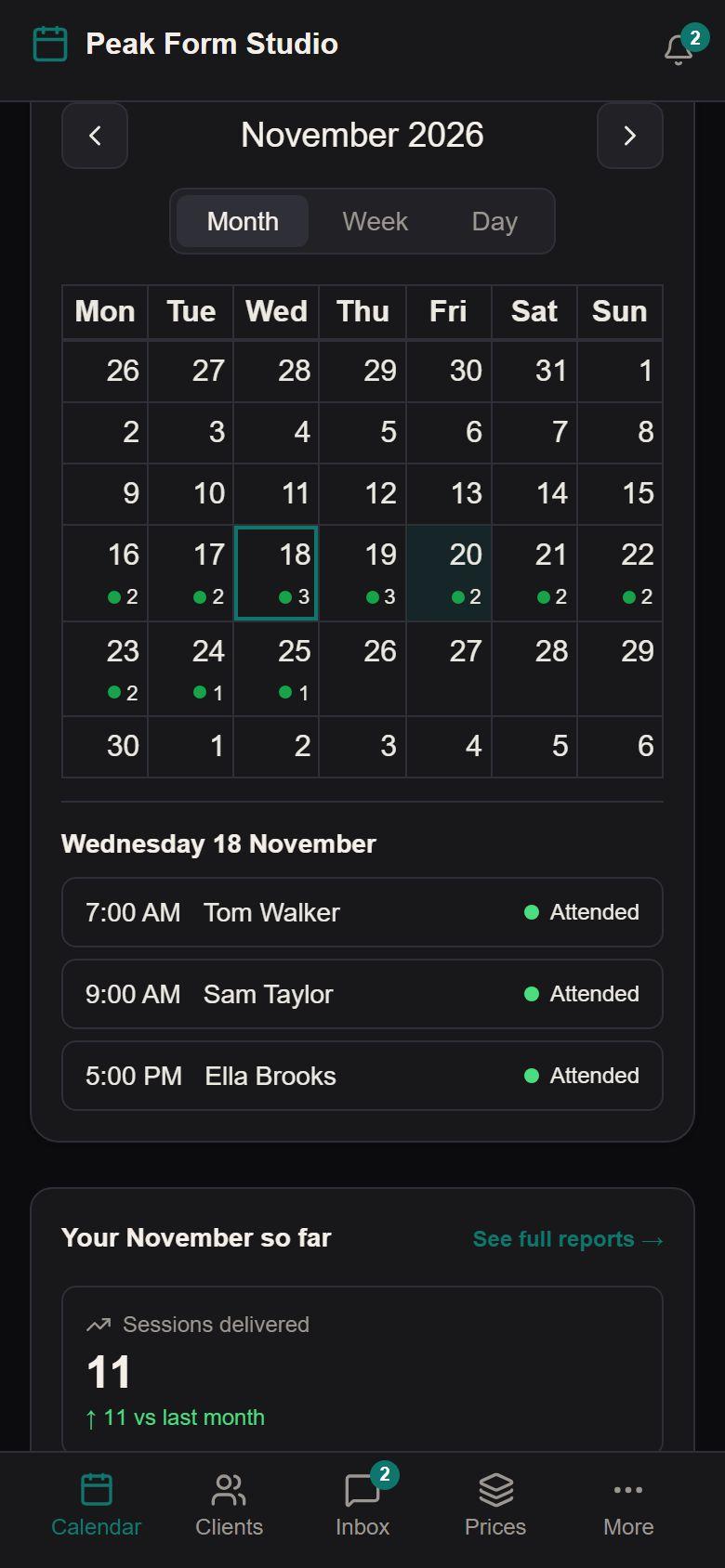
Your week, at a glance
Set your hours once. Clients only see the times you’re free, and every booking lands in your calendar.
- Month, week and day
- Split shifts
- Time off
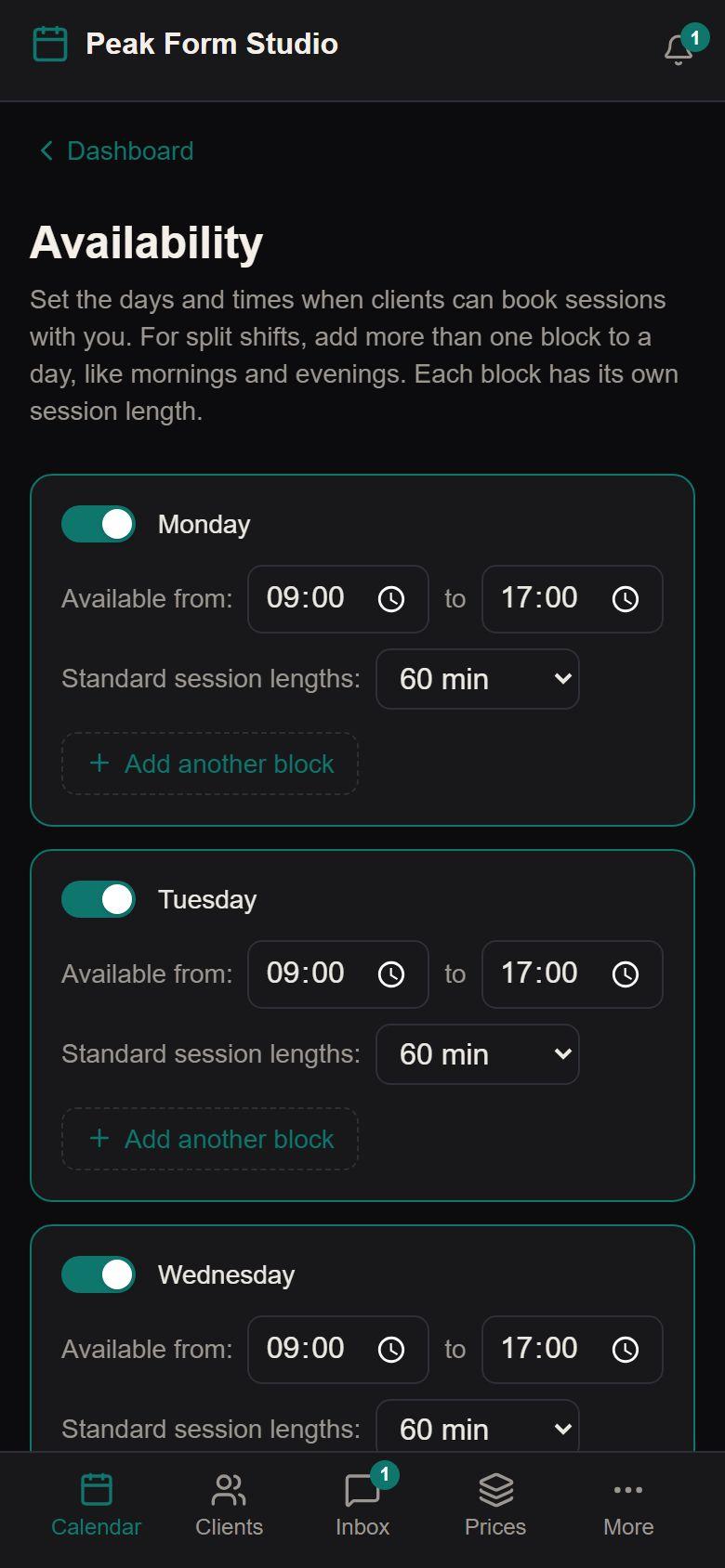
Hours that fit your week
Give each day its own hours, with a second block for split shifts. Each block has its own session length.
- Lengths from 5 minutes to 8 hours
- Seasonal hours, such as summer
- Minimum notice and gaps between sessions
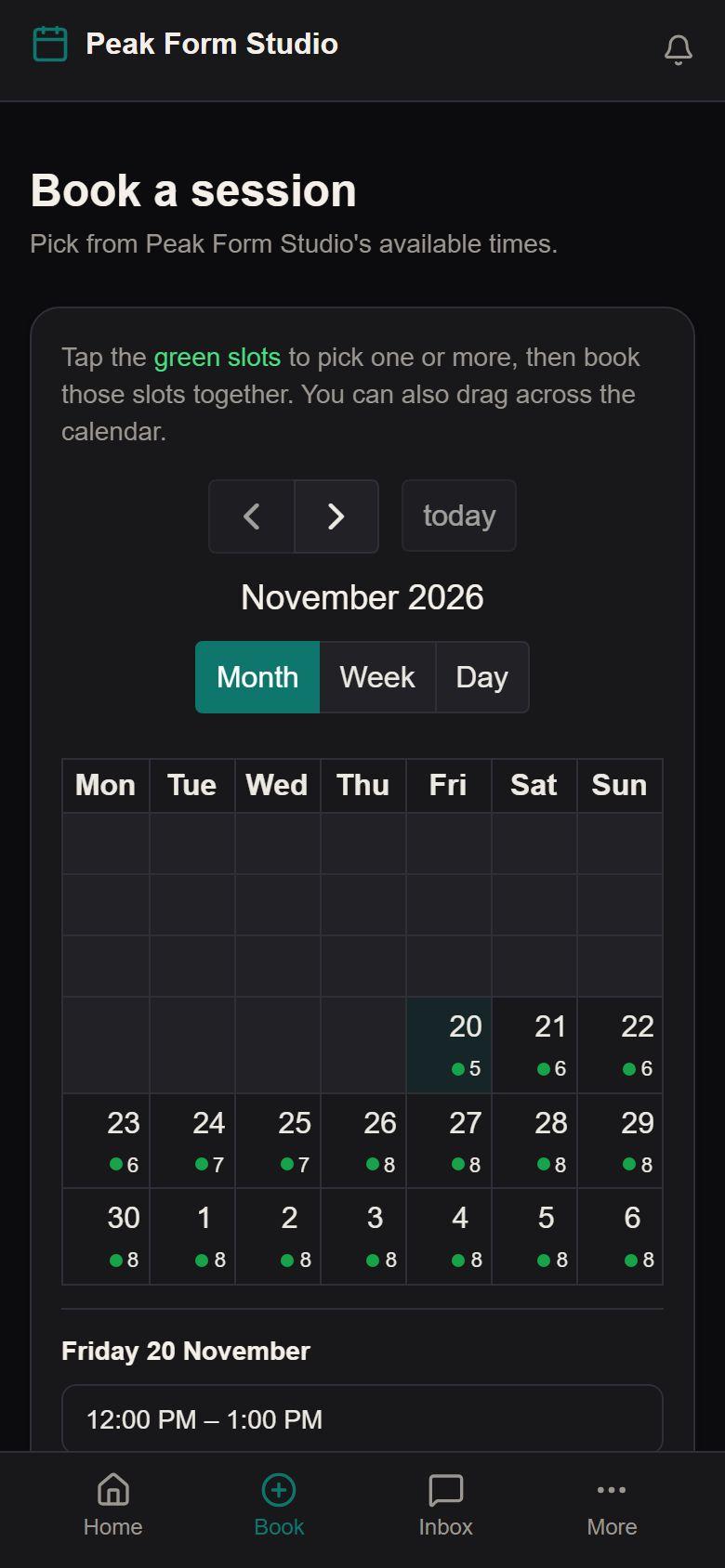
Clients only see free times
Your booking page offers the times you’re free and nothing else. Book time off and no times show then.
- Taken times can show greyed out
- A waiting list for busy times
- Approve each booking, if you prefer
Set up in three steps
- Set your weekly hours
- Add any time off
- Share your booking link
Questions trainers ask
Can I work split shifts?
Yes. Give a day more than one block, such as 06:00 to 10:00 and 17:00 to 21:00. Each block keeps its own session length.
Can I move a session myself?
Yes. On a larger screen, drag the session to a new time. The calendar asks first, then emails your client the new time.
What happens when I book time off?
No times show in your time off. TrainerBook asks first, then cancels sessions already booked. Each client is told once.
Does the calendar work on a phone?
Yes. On a phone, each day of the month shows how many sessions are booked. Tap a day to list its sessions.
More from TrainerBook
- Your booking link One link. Clients book, move and cancel without an account.
- Payments Card, Direct Debit and sessions packs, paid straight to you.
- Reminders & branding Automatic reminders, and your own colours and logo.
- Messages Chat with clients who use the app, or message them all at once.
- Gyms & classes Group classes with a waiting list, and one page for your gym.